
Unable to view layer because of massive print head obstruction
I'm trying to examine a single layer to see how it will print, and when I used to do this I got a nice little small image for the print head so I could easily see where it was up to.
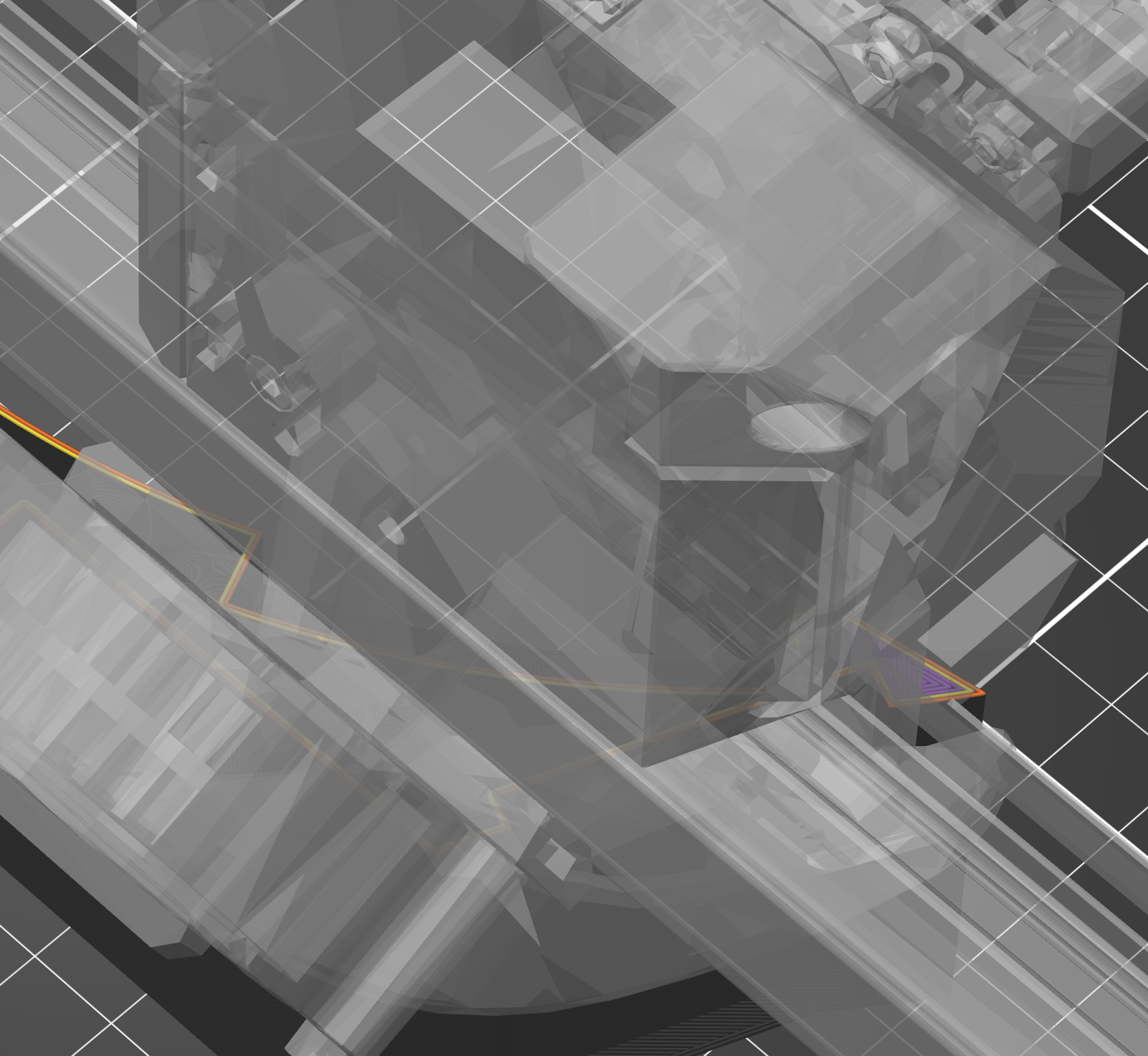
I just went to do it again and now the whole view is completely blocked by an enormous render of the whole print head, completely blocking the view of what's actually happening!
How do I get the old view back where I can actually see the lines being printed? I know what my print head looks like, I don't need to see a render of it! I can't see any layer lines with that monstrosity blocking the view.
I've just spent an hour digging through all the options with no luck, and I was even desperate enough to ask AI which wasted a good 15 minutes before it admitted to me it was giving me instructions for a completely different program even though I told it I was using PrusaSlicer.
Best Answer by FoxRun3D:
Thanks for the 3mf file. Go to Print Settings>Output option and disable complete individual objects. The ghost image is supposed to help you identify possible interference when printing multiple objects
RE: Unable to view layer because of massive print head obstruction
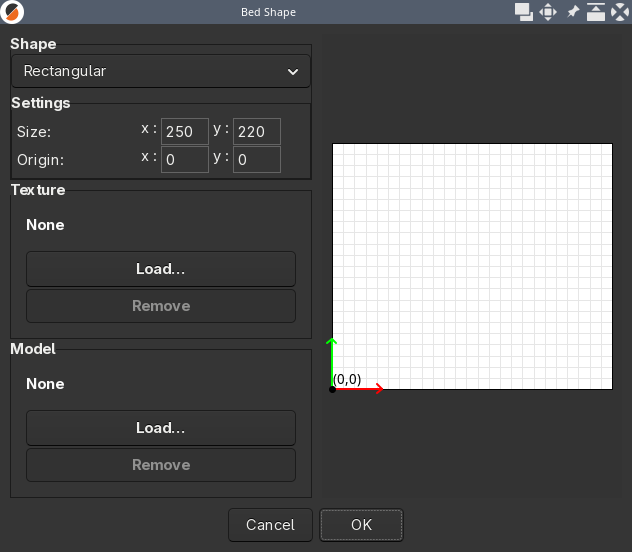
I don't know what printer you are using so cant load in the same profiles but the first place I would look (making sure you are in Expert Mode) is Printers > General and then clicking the Bed Shape >Set button. That allows you to load in a bed texture and/or a bed model. Have a look at whats set in there and see if removing any 'model' if there. Keep the texture/svg one.
RE: Unable to view layer because of massive print head obstruction
Thanks for the quick reply. I'm using a Core One+. The Bed Shape doesn't seem to indicate anything:

RE: Unable to view layer because of massive print head obstruction
Once you completed the slicing process. Make sure the "Plater menu option is highlighted and the legend is visible. In the lower righthand corner select the tool marker (print head). Make sure you in in the preview option ( UI option with stacked layers lower left corner) Once done use the horizonal scroll button and the vertical scroll buttons to navigate to the layer you want to review. It is the horizontal scroll button that will provide you with the print head navigation. You can also do this in the PrusaSlicer G-Code Viewer application.

RE: Unable to view layer because of massive print head obstruction
Interesting. Can you attach a zipped 3mf project so we can look at the settings?
Formerly known on this forum as @fuchsr -- https://foxrun3d.com/

RE:
@malvineous
You most likely have checked the box for "Complete individual objects:" found in Print Settings/Output options [Sequential printing] when this is done Slicer displays a model of the print head it thinks your using to give a reasonable approximation of possible collision paths, so that you can decide if your going to have any issues during the printing or a successful print. As @laxdavi3 mentioned in the post above, you can choose to not see the translucent model of the print head by deselecting the "Tool Marker" view found in the Legend at the lower left once the project has sliced. To get back to the marker your referring to you will of course need to deselect "Complete individual objects:
Hope this helps you.
RE:
@Laxidavi3 Yes this is exactly what I'm doing, but as soon as I use the horizontal slider, the whole print head renders and I can't see what I'm doing any more.
I can click the "Tool head" button in the Legend box at the top left and it hides it, but then it's very hard to see where the tool head is because there's nothing to show the tool head position any more. It used to be a little tool head image which was perfect as you could see where the tool head was, without it obstructing the entire view.

@FoxRun3D I saved the project as a 3MF and I've attached it.

RE:
In Preview (sliced view) press x - single layer mode.
Another option is to click on one of the most right icons in the legend: shells and tool marker.
See my GitHub and printables.com for some 3d stuff that you may like.
RE: Unable to view layer because of massive print head obstruction
Thanks for the 3mf file. Go to Print Settings>Output option and disable complete individual objects. The ghost image is supposed to help you identify possible interference when printing multiple objects
Formerly known on this forum as @fuchsr -- https://foxrun3d.com/
RE:
@FoxRun3D: That was it! When I disable that option (complete individual objects) then I get the small tool head image back again! Thanks for figuring this out - no wonder I couldn't find the option, I never would've thought that could be it!
@_kaszpir_: I tried pressing X and it does go to single layer mode which doesn't fix the problem, but does at least mean I can rotate the view and look at the layer from the underside, with the large print head render behind the object instead of blocking it. So that's a good workaround to avoid having to go untick the other option and re-slice, if you are just going one quick check.
Thanks everyone for all the suggestions, I'm glad the problem has been solved!
EDIT: Sorry @snuffleupagus, your reply came through between when I opened the thread and posted my reply so I didn't see it! If I had seen it it would've solved my problem as you were indeed correct!