
Intruducing: PrusaLink Discord Notify
Since the introduction of Buddy firmware, tools like OctoPrint are no longer fully reliable as a monitoring layer for Prusa printers in my experience.
With that in mind, I was looking for a solution to send print progress notifications to a Discord server, similar to what the OctoPrint plugin Octorant provides.
Because OctoPrint relies on serial communication with the printer, it has several limitations when used purely as a monitoring solution:
- Unreliable detection of prints that were not started through OctoPrint
- Inconsistent job and progress tracking for locally started prints
Prusa Connect, the cloud-based counterpart to PrusaLink, does offer a Discord integration, but it is limited to basic status notifications.
It does not provide (as of now):
- detailed printer metrics
- live snapshots or images (even if a camera is available)
Since PrusaLink provides a direct local API with live printer data, I decided to develop my own solution:
PrusaLink Discord Notify (BETA)
PrusaLink Discord Notify is a lightweight C# background service that monitors a Prusa printer via the local PrusaLink API and posts structured status and progress updates to a Discord channel — including live camera snapshots.
It's still in a beta-like state and will be further refined.
Feature requests are also welcome XD
Features
- Polls the printer at a configurable interval
- Detects relevant state changes only
- Sends updates only when meaningful events occur
- Rate-limited progress notifications using:
- time-based thresholds
- percentage-based thresholds
- Persistent local state for restart safety
- Prevents:
- duplicate notifications
- outdated job detection
- false progress updates after restarts
- Designed for:
- unattended operation
- graceful shutdown
- long-running stability
Recommended Platform
Raspberry Pi 5 (recommended)
Raspberry Pi 4 (should also work fine, not tested)
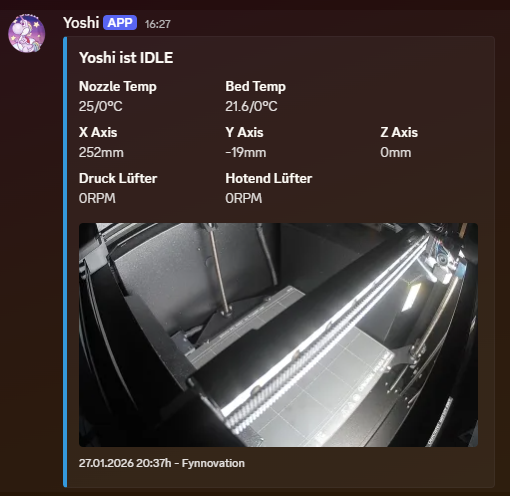
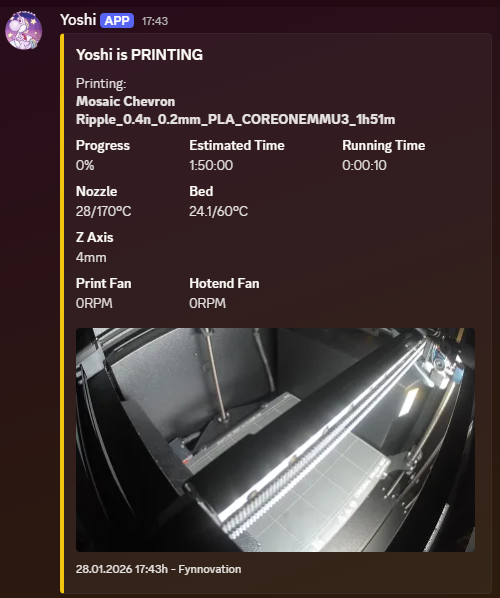
Installation
Requirements
- .NET 9
- FFmpeg
⚠️ Disclaimer: All apt commands use the -y flag, which skips user confirmation prompts.
1. Update the system
sudo apt update && sudo apt upgrade -y2. Install .NET 9
curl -sSL  https://dot.net/v1/dotnet-install.sh  | bash /dev/stdin --version 9.0.310 && \
echo 'export DOTNET_ROOT=$HOME/.dotnet' >> ~/.bashrc && \
echo 'export PATH=$PATH:$HOME/.dotnet' >> ~/.bashrc && \
source ~/.bashrc
3. Install FFmpeg
sudo apt install ffmpeg -yDownload
Raspberry Pi OS (ARM64)
https://fynnovation.com/cdn/PrusaDiscordNotify/Pi/PrusaDiscordNotify_armx64.zip
Raspberry Pi OS (ARM32 / x86)
https://fynnovation.com/cdn/PrusaDiscordNotify/Pi/PrusaDiscordNotify_arm.zip
Download & extract via SSH
mkdir -p PrusaNotify && \
cd PrusaNotify && \
wget  https://fynnovation.com/cdn/PrusaDiscordNotify/Pi/PrusaDiscordNotify_armx64.zip  && \
unzip PrusaDiscordNotify_armx64.zip && \
sudo chmod +x PrusaDiscordNotify
If the command fails, ensure wget and unzip are installed:
sudo apt update && sudo apt install wget unzip -ySystemd Service Setup
Create the service file:
sudo nano /etc/systemd/system/prusanotify.service[Unit]
Description=Prusa Discord Notify
After=network.target
[Service]
ExecStart=/PATH/TO/PrusaNotify/PrusaDiscordNotify
WorkingDirectory=/PATH/TO/PrusaNotify/
Restart=always
RestartSec=10
KillSignal=SIGINT
StandardOutput=append:/var/log/PrusaNotify.log
StandardError=append:/var/log/PrusaNotify.log
SyslogIdentifier=prusanotify
[Install]
WantedBy=multi-user.targetNote: Replace /PATH/TO/PrusaNotify/ with the actual installation path.
Enable and start the service:
sudo systemctl enable prusanotify
sudo systemctl start prusanotify
Logs & Monitoring
To inspect the service output:
cat /var/log/PrusaNotify.logOr follow it live:
tail -f /var/log/PrusaNotify.logConfiguration (config.json)
PrusaLink Discord Notify is configured using a simple config.json file. All settings can be adjusted without recompiling the application.
{
  "language": "en",
  "printer_name": "Prusa Printer",
  "api_base_url": "http://YOUR_PRINTER_IP/api/v1/",
  "api_key": "PrusaLinkPassword",
  "DC_Webhook": "DiscordWebhookURL",
  "rtspUrl": "rtsp://YOUR_BUDDYCAM_IP/live",
  "output": "snapshot.jpg",
  "delete": true,
  "MinPostInterval": 5,
  "TimeTrigger": 5,
  "ProgressStep": 10
}
Configuration options explained:
- language
Specifies the language used for Discord messages.
This must match a JSON file in thelang/directory (without the.jsonextension).
Example:"en","de","cs","tlh" - printer_name
Display name of the printer shown in Discord messages and embeds. - api_base_url
Base URL of the local PrusaLink API.
Example:http://192.168.1.50/api/v1/ - api_key
PrusaLink API key (the PrusaLink password). - DC_Webhook
Discord webhook URL where status updates and snapshots will be posted. - rtspUrl
RTSP stream URL of the printer camera (e.g. BuddyCam). - output
Temporary filename used for the generated snapshot image. - delete
If set totrue, the snapshot image is deleted after it has been sent to Discord. - MinPostInterval
Minimum time (in minutes) between Discord updates, even if progress changes frequently. - TimeTrigger
Time-based fallback trigger (in minutes).
Ensures periodic updates even if progress does not advance significantly. - ProgressStep
Percentage-based progress step required to trigger a new notification.
Example:10= notify every 10% progress.
Languages
The service ships with multiple predefined language files located in the lang/ directory. These files are simple JSON dictionaries based on a common template.
Important:
The following languages are fantasy languages and are included purely for fun:
- sindarin – Elvish (Lord of the Rings)
- goauld – Goa’uld (Stargate SG-1 / Atlantis)
- tlh – Klingon (Star Trek)
These languages follow a somewhat lore-consistent convention but are not real-world languages.
All language files are derived from the same base template (see en.json). Using this template, anyone can:
- add their own language
- modify existing translations
- create custom or themed language variants
To add a new language, simply copy en.json, translate the values, and name the file accordingly (e.g. fr.json, es.json, pirate.json).
Applying configuration changes
The config.json and .json file can be modified while the service is installed. To apply changes, restart the service:
sudo systemctl restart prusanotifyThe new configuration and language settings will be applied immediately after restart.

RE: Intruducing: PrusaLink Discord Notify
Nice project but I still don't see what advantage this is over PrusaConnect.
Prusa Connect, the cloud-based counterpart to PrusaLink, does offer a Discord integration, but it is limited to basic status notifications.
It does not provide (as of now):
detailed printer metricslive snapshots or images (even if a camera is available)
Metrics and for sure camera snapshots are available via PrusaConnect
RE:
As you qoutet it, the Doscord integration lacks these metrics.
And as is said, I was looking for an solution to send these information into Discord.
For sure, using Connect standalone will be sufficient for many Makers here.
For me it lacks the ability for a proper Discord Integration, so im just sharing my solution for that XD
Another reason was, to have the ability to send these information into a Community Discord, where many people following their creators, or want to share their projects.
So as long as the Connect Integration for Discord does not provide these data, this tool fills the gap.
RE: Intruducing: PrusaLink Discord Notify
Unless the requirement is discord notifications. What I love about PrusaConnect is I get notifications on my apple watch.

RE:
I really like downloading binary executables from the unknown sources 😉
You could just add wget and unzip to the install command, it would ensure it is installed even if it is already there - the procedure would be less confusing.
In systemd service I'd just leave syslog/journald redirect without wiriting to the files.
In addition I'd wait for service to network to be online, not just multi-user up.
The docs are totally ignorinng the core part - how to set up Discord.
See my GitHub and printables.com for some 3d stuff that you may like.
RE: Intruducing: PrusaLink Discord Notify
Thank for your input, yes the Discord Webhook part is missing. As I was aware of that myself, I couldn't edit the post anymore, so I let it be the way it was.
How to Add and Work with Webhooks can be found here: https://support.discord.com/hc/en-us/articles/228383668-Intro-to-Webhooks
Your overall post is pretty helpful for me, since it's my first of this kind.
So thank you for your Input!
Nevertheless, I will say a few words about why I did the things my way. ^^
I really like downloading binary executables from the unknown sources 😉
That concern applies to executed binaries as well — otherwise you’d have to question a large part of modern software. Many widely used tools, firmwares, and vendor utilities are closed-source, and being a large company doesn’t automatically make software trustworthy either.
As a small/independent developer, I have to go through the same trust-building process.
That takes time and transparency, and I fully understand the hesitation.
To help with that, the latest binaries were checked with VirusTotal and can be independently verified here: https://www.virustotal.com/gui/file/5d6be59b837992056ea4ed2cc79a9fce6c0f92212564ea55065e000f6d05cf7b https://www.virustotal.com/gui/file/33f0884fee65ede01e58d22cd85c256a611b69286eca85e61237bc87c7da682b
The service is intended for a dedicated Raspberry Pi with a limited scope, not a personal system with sensitive data.
Everyone has to decide for themselves where they draw that line, and it’s completely fair and fine.
You could just add wget and unzip to the install command, it would ensure it is installed even if it is already there - the procedure would be less confusing.
I intentionally kept the install steps minimal and explicit so it’s clear which dependencies are actually required. "wget" and "unzip" are already included in standard up-to-date Raspberry Pi OS images, but I added a fallback note for minimal setups to keep the process both clear and robust.
You could just add wget and unzip to the install command, it would ensure it is installed even if it is already there - the procedure would be less confusing.
I wanted a separate logfile, to make the service output easy to inspect without relying on journald.
If someone prefers using the default systemd/journald logging, the service file can, of course, be adjusted accordingly by removing the lines:
StandardOutput=append:/var/log/PrusaNotify.log
StandardError=append:/var/log/PrusaNotify.log
In addition I'd wait for service to network to be online, not just multi-user up
In this case the service is designed to handle missing connectivity gracefully, so starting at network.target has no functional impact beyond the first successful poll happening slightly later.
Using network-online.target is a reasonable alternative if a stricter startup order is preferred.
Just change the "After" line to
After=network-online.target
Wants=network-online.target
That all said, everyone is completely free to set up and use this the way they want or not.
Happy Printing